 SemAgent
Conversations
Admin Panel → Conversations is the inbox for conversations from your widget, email, WhatsApp, Instagram and Telegram: watch what the AI answers, take over when needed, share files and block visitors who cause trouble. The handoff itself (working hours, teams, rules, WhatsApp / SMS alerts) is on the Human handoff page.


The inbox
The conversation list sits on the left and the selected conversation on the right. You can filter the list by status, assignee and tag. New conversations and messages appear instantly (the header says Live); if the connection drops, the screen refreshes itself at regular intervals.
The Inbox selector at the top of the list appears once you have at least one team: All conversations, Assigned to me, Unassigned and each team's own inbox (yours marked “your team”). A team's inbox lists the conversations assigned to that team; the counts show unresolved conversations. Your choice is remembered in this browser; Manage teams takes you to where teams are edited. Teams: Human handoff › Teams.
A conversation waiting for a person's reply shows Awaiting reply · time on its card. If you set a reply time target, the pill turns red once the target is missed and says target missed; hover over it to see the target.
On your site now: live visitors
With the live visitor list on in Widget Settings, an N on site button appears in the top bar. It opens the visitors who were on your site in the last 90 seconds; while open, the list refreshes every 10 seconds. Each row shows the page the visitor is on, when they arrived, how many pages they viewed, the site they came from, their device (phone / desktop), their language and whether they are New or Returning. Visitors with a conversation show their name, and Open conversation takes you there; everyone else is anonymous. No IP address or location is shown, because none is kept.


One person, one color
When a person has more than one conversation in the list, their cards share a color: a colored stripe on the left, a light tint and, at the top right, a people icon with the number of cards. Even if the colors are hard to tell apart, the number says how many conversations that person has in the list. Each person gets their own color; two different people shown at the same time never share one.
Colors are given only to verified people and to people your team added to a customer record. Possible matches get no color; they show the Possible match label instead. When you add a conversation to a customer record, the list picks up the color right away.
The conversation you have open is framed in the accent color, so you can see where you are even among cards of the same color.
Search
The box above the list searches the customer's name, email and message text (at least 2 characters). The matching part of the message shows under the row. Case doesn't matter, including the Turkish İ/ı; characters such as % and _ are searched as they are. Search only covers your own account's conversations; if it takes longer than 5 seconds, the screen says so and asks for a more specific word.
Filters
The Filters button beside the search box opens a small panel above the list. The rest of the screen stays where it is while it is open; clicking elsewhere or pressing Esc closes it.
There are five filters and they work together:
| Filter | Options |
|---|---|
| Status | All · Awaiting reply · Active · Taken over · Escalation · Resolved. The one you will reach for daily is “Awaiting reply”: the conversations waiting for a person to answer (handed to the team but not taken over yet, or taken over but the last word isn't the agent's). |
| Type | All · RAG · E-Commerce: the conversation's widget type. |
| Assignment | All · Assigned to me · Unassigned. “Unassigned” collects the ones nobody has picked up. |
| Channel | All channels · Widget · Email · WhatsApp · Instagram · Telegram. |
| Tag | The tags you gave the conversation. This filter is hidden while there are no tags. |
Once the panel closes, every filter you picked shows as a chip under the search box and can be removed one at a time with its ×; Clear filters resets them all. The button itself says how many filters are on (Filters (2)) — it is there so that when the list looks empty you do not have to wonder whether you left a filter behind.
Keep the same person together
The Keep the same person together switch at the bottom of the filters box gathers a person's conversations right below their newest one in the list. When any of that person's conversations gets a new message, the whole group moves up.
It is not a filter: it hides nothing and only changes the order, so it is not counted as one. It is off by default, because the list is read newest first and grouping moves older conversations up. Your choice is kept in this browser.
Take over, reply, close
To reply, Take over first: the conversation is assigned to you and the AI goes quiet. Release hands control back to the AI, Mark resolved closes the conversation, and Reopen opens a closed one again. These buttons sit in the strip above the reply box. Taking over a conversation another agent has sends them an email. Canned responses, internal notes, tags and AI assistance (summary, suggestion, rewrite, translation) are on the same screen. Teams, handoff rules and working hours: Human handoff.
Reading a thread
The selected conversation opens in its own column. Its header is a single line: the customer's name, how long they have been waiting, the channel, the channel details (username or number and the messaging window) and who the conversation is assigned to. Anything that does not fit is shortened; you can read most of it in full by hovering over it. When the header gets narrow (for example on a 1280 px wide screen), secondary words drop first: the assignment shows only the person's name, and the other-conversations button drops its words and keeps the icon and the number. The state of the messaging window is also written in the line above the reply box. This leaves the thread as much room as possible.
In a long conversation the last 200 messages open; for older ones press Show earlier messages at the very top of the thread.
So that someone opening the record later can read “who said what, and when” without having to ask, there are three markers.
The bubble colour tells you who is speaking
- The customer's message — a light bubble with a thin border, on the left.
- Yours and the AI's — a bubble in the brand tone, on the right.
- Events — system lines such as taken over, resolved, survey sent, in a third tone, centred. They are not part of the conversation, which is exactly why they have to look different.
Above each bubble it also says who wrote it: Customer, Agent, Assistant, Auto-reply or System.
A date and time under every message
The timestamp sits at the bottom left of the message, in your own time zone. To measure how late a reply went out, two timestamps are all you need.
Per-message actions
At the right-hand end of that same row there is a … button. It opens the actions for that one message:
- Save as canned reply — shown only on messages an agent wrote that are at least a few sentences long. It stores a good reply so next time it is one click.
- Add to knowledge base — shown on replies an agent wrote, for roles that can edit the knowledge base. The customer's question (the last customer message before the reply) and your answer open in two editable boxes; Save to knowledge base adds the Q&A to the knowledge base's Corrected answers folder, and from then on the assistant answers this question with this answer. Remove anything specific to this customer (name, order number, address) before saving. The same Q&A isn't added twice; if the folder is turned off for the assistant, the screen says so.
- Remind me — sets yourself an alarm for that message (below). The delays are listed one under another; clicking one sets the reminder.
On customer messages a small Translate button sits just left of the … button (see Message translation below).
Product cards and option buttons
The product cards and option buttons shown to the customer with the AI's reply also appear under that reply in the panel: Products shown (marked clicked if the customer clicked, added to cart if they added it) and Suggested replies. An agent taking over knows which product the customer saw and what they could tap. Settings: Option buttons and product cards.
These two used to sit under the bubble as loose links, and in a narrow bubble they ran into the timestamp. Now the time is on the left and the … on the right; they no longer collide.
The “typing…” indicator
While a person is handling the chat (taken over, or waiting for the team), The visitor is typing… appears under the open conversation when the visitor starts typing; it clears 6 seconds after the last keystroke or when the message arrives. While you type in the reply box, the visitor sees typing dots in the widget. No text is sent ahead of time, only the “typing” signal; your message goes out only when you press Send.
While a conversation is taken over or waiting for the team, the widget keeps a live connection to the panel: as long as the page is open, the agent's reply and the typing signal reach the visitor's screen instantly.
File sharing
While a person is handling the chat, the visitor can send a file with the paperclip button in the widget, and you can send one with the file button next to Send once you've taken over. A file shows up in the conversation as a message; the widget shows the upload progress as a percentage.
| Rule | Details |
|---|---|
| Types | PDF, PNG, JPG, TXT. The content must match the extension: a program named .pdf is refused. |
| Size and count | Up to 10 MB per file; 3 at a time and 20 per conversation. At most 200 files a day from visitors per account. |
| Virus scan | Every file is scanned; until the scan finishes it says scanning… and can't be downloaded. A file that fails the scan can't be opened. Once the scan finishes, the label updates by itself in both the widget and the panel. |
| Rejected files | Recorded and shown with the reason (type, size, empty file…); nothing disappears silently. |
| Opening and downloading | In the panel, clicking a file opens PDF, PNG, JPG and TXT files in a new tab; the button next to it downloads the file. Only these types are shown in the new tab, never a type that can run scripts. Visitors download files in the widget. Files an agent sends are not emailed, and the AI doesn't read files. |
| Files on Instagram | The same switch exists on your Instagram account. Instagram accepts a narrow set: PNG/JPG, MP4, M4A and PDF; anything else is not sent and the message says why. |
| Files on WhatsApp | A customer can send a photo, a document, a voice note or a video on WhatsApp, and an agent can send the same from the panel. This is a per-number switch: Publishing → Messaging → WhatsApp tab → File sharing. While it is off, an incoming file is not downloaded and the reason is shown. Voice and video are only accepted while the switch is on; the email channel's rule is unchanged. A file an agent sends waits until the virus scan comes back clean and then goes out — if it does not, the file is not sent and the message says why. Each stored incoming file costs 1 credit. |
| Retention | After 12 months the file itself is deleted; the conversation keeps its name and the fact that it was deleted. |
WhatsApp and Instagram conversations
When a customer writes to your WhatsApp number or your Instagram account, a conversation opens here too; your team replies from the panel and the reply goes back out on the same channel. Connecting the number and account, history import, AI and file settings: Messaging.


| Topic | Detail |
|---|---|
| The 24-hour window | You can reply freely for 24 hours after the customer's last message. The line above the reply box says when the window closes (You are replying via WhatsApp · window closes …). If the customer is waiting for a reply and the window closes in less than 2 hours, a Window: … chip in the list shows the time left; once the window has closed, the chip reads Window closed. After that, WhatsApp only allows an approved template (Write with an approved template); on Instagram nothing can be sent until the customer writes again. Details: Messaging › The 24-hour window. |
| Creating a template | You write templates in Meta's WhatsApp Manager: name, language, category and body. The body uses placeholders like {{1}} and {{2}}; the panel asks you to fill those in. Creating one and submitting it for review is free — a fee only arises when a message is sent. Approval usually takes minutes, sometimes a few hours; a template that is not approved is not listed in the panel. The category decides the price: utility templates (orders, shipping, appointments) are free within 24 hours of the customer's last message, marketing templates are always charged. The wrong category is the most common reason for rejection. You can fix a rejected template and resubmit it without renaming it. |
| The app on your phone | If you connected the number alongside the WhatsApp Business app on your phone, a reply you type there lands in the same conversation, marked “Sent from the WhatsApp app”, and the AI stays quiet in that conversation. The same holds for a reply typed in the Instagram app. |
| Past chats | If you chose to share them while connecting the number, the last 180 days of chats are written as closed conversations (“From WhatsApp history”): searchable and in the archive, without filling your inbox, spending credit or opening the 24-hour window. When the customer writes again, the conversation opens by itself. |
| Statuses and reactions | Under each message you send, its status shows (sent, delivered, read); a message that didn't go out shows why. A customer's reaction (such as 👍) shows as a small chip on the message. |
| Voice messages | With Transcribe voice messages on in Messaging, a voice message from WhatsApp, Instagram or Telegram shows its transcript underneath (Transcribed), and the AI reads the transcript and answers the question. If a recording is too long or can't be transcribed, the reason shows and you reply after listening to it. With the setting off, a note under the message tells you where to turn it on. |
| Instagram only | Replies to your story, edited messages (“Edited”, with the original still visible) and unsent messages are marked in the conversation. |
| The AI | On both channels this is a per-number / per-account switch (on by default) and uses the same engine and the same credit rule as the widget. The first answer carries a “Talk to a person” button; when the customer taps it the conversation goes to your team without calling the AI. When the AI asks the customer to choose, the options become reply buttons or a list on WhatsApp and quick replies on Instagram; the option the customer taps arrives as their message. |
Both channels open once SemAgent's Meta app is approved; until then the panel says they are not available yet.
Person panel
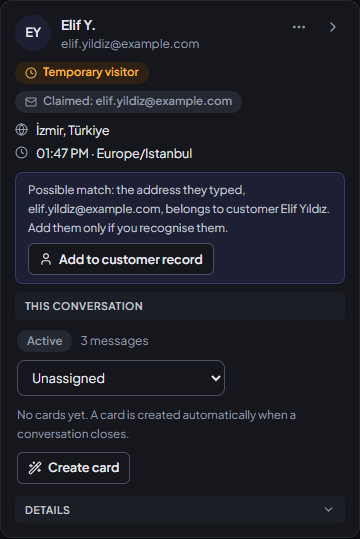
Clicking a conversation opens the person panel: everything we know about the human behind this thread, without leaving the thread. Where it sits depends on the screen width: on a screen 1536 px wide or more it is the third column, on the right; on a narrower screen it sits in the left column, under the list (below 1024 px, under the conversation). The panel has four sections and answers three questions in order: who is this?, where are we in this conversation?, details.
When you need the space, the arrow at its top right collapses it to a narrow icon rail — the way the left menu collapses. The rail stays so you are not hunting for the button that brings the panel back. Your choice is remembered in your browser; you do not have to close it again on every conversation.
| Section | What is in it |
|---|---|
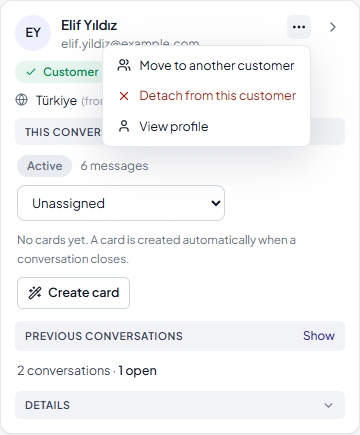
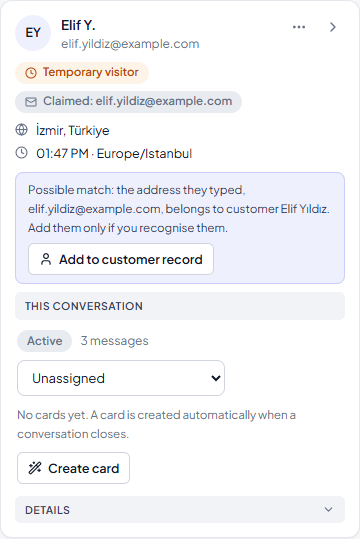
| Person (always open) | Name, email or username, whether the person is a Customer or a Temporary visitor, their country and what time it is there right now. If there is a possible match, one button: Add to customer record. Less frequent actions live in the ⋯ menu. |
| This conversation (always open) | Status (active / taken over / resolved), message count, assignee and this conversation's card (topic, outcome, promise). You change the assignment here; the person it goes to is told by email. |
| Previous conversations | One line: 4 conversations · 2 open. Show opens the box in the header (below). That box is the one place for the person's other conversations. |
| Details (starts closed) | Basics, visitor device, segments, visitor data, orders and pages visited (table below). If you open it, your browser keeps it open. |
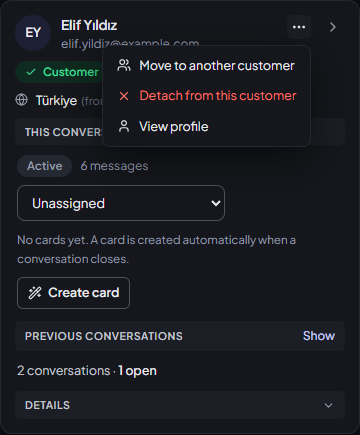
The “⋯” menu
- Add to customer record — adds a temporary person to a customer (it is here when there is no possible match). You type the email and what you base it on; the change is written to the audit log.
- Move to another customer — if the person is on the wrong customer, type the right customer's address; the panel says who it moves from and to and asks you to confirm.
- Detach from this customer — takes a wrongly added person off the customer; the conversation moves to a new temporary person. It can be undone from the history on the Customers screen.
- Ask for consent — WhatsApp only, when the setting is on: sends the customer a marketing consent question.
- View profile — the person's lasting record on the Customers screen: past conversations, tags, note.
A temporary visitor is known only by their channel or device; an email they typed shows separately as a claim, because it is not verified. If the claimed address belongs to a customer or appears in the order archive, the panel shows it as a possible match; add them with Add to customer record if you recognise them. A person becomes a customer by themselves when they verify an order number or write while signed in to your site. Details: Customers › The list fills itself.
Inside Details
| Heading | What is in it |
|---|---|
| Basics | Their language, how many conversations they have had, the first and last message dates, and which channels they write from. Country and local time sit at the top, next to the person. |
| Visitor device | A short browser/OS summary (“Chrome 141 · Windows”) and the IP address. |
| Segments | The tags you give this person. Type into the box to add, click the × to remove. The Customers screen edits the same field — they are one record. |
| Visitor data | Your own key/value pairs: Plan → Pro, Account → Suspended, CRM → ACME-4471. Add them with Add field. Only your team sees them; they never appear anywhere the customer can see and are never given to the AI. |
| Orders | If a store is connected, the recent orders for this email address. |
| Pages visited | The last five pages they saw on your site, newest first. If they opened the same page again it appears once and moves to the top. |
Step by step: marking up a person
- Open the conversation; the person panel opens on the right on a wide screen, or under the list on a narrower one.
- Open Details. Under Segments, type the tag into the box (for example
wholesale) and add it. It confirms as soon as it is saved. - To keep a fact about this person, go to Visitor data → Add field: the field name on the left, its value on the right.
- Next time that person writes, both are waiting for you in the panel.
Orders
The order box loads lazily: nothing is asked of the store until you press Fetch orders. The reason is quota — there is no need to make the store work for every conversation you scroll past.
- The list always comes live from the store: order number, payment status, fulfilment status, total and date.
- If the store does not answer, the last known list is shown and the box warns “last known status”, with the date and time those rows were measured. When you see that warning, confirm with the store before telling a customer anything: the order you would call “shipped” may have been cancelled since.
- The note under the box is not boilerplate: the list belongs to the email address the visitor typed, and that address is not verified. Before giving a customer order information, verify it with the order number first.
Where this data comes from
City, time zone, browser and IP are personal data. They appear only in the panel, only to your team; they never reach a message sent to the customer and never enter the AI's context. No external location or fingerprinting service is consulted for any of it — what arrives with the request is read. The raw User-Agent is not stored, only a short summary.
We do not invent a field we did not collect: if a value is unknown, that row is not drawn at all. If a value could not be measured in this conversation and comes from the person's earlier visit, the panel says so plainly: “Not measured in this conversation — from the person's earlier visit.”
On messaging channels (WhatsApp, Instagram, Telegram) there is no IP and no location — Meta and Telegram do not provide them. There you get the username, profile name and phone; on Telegram also the app language. On WhatsApp the country is derived from the number's dialling code and the panel marks it “from phone” — because it is a guess, not a measurement.
What is collected, how long it is kept and what happens on a deletion request: Privacy Policy › Visitor metadata.
When one person writes from several channels
The same person can write to you on WhatsApp, Instagram, the chat bubble and email. SemAgent does not join these conversations on its own; it joins them once the person's identity is proven.
What changes when they are joined
- Conversations stay where they are. Each channel's conversation stays in its channel and replies go out through it: you answer a WhatsApp message on WhatsApp. Messages are never mixed.
- The person's record becomes one. On the Customers screen the person shows as one row; their channels, conversation count, orders and spend add up.
- Their other conversations are in the header box. A button in the conversation header counts the person's other conversations (with room in the header it reads “3 other conversations”); the Previous conversations line in the person panel opens the same box. If another agent is handling an open conversation on another channel, the button turns amber; a new conversation goes to that agent when they are online.
- The AI knows the outline, not the customer's messages. For a verified customer it sees when, on which channel and about what their other conversations were. If a conversation on another channel is still open, it also sees the agent's latest reply there, so the two channels don't get conflicting answers (below). It never sees the customer's messages.
- Segments count the person once. Orders from all of their verified addresses count together. In campaigns, the same campaign reaches a person once.
- Consent stays per channel. Someone who said “stop” on email can still receive campaigns on WhatsApp if they consented there; an opt-out closes only the channel it was given on.
When they are joined
- The person enters their order number and the email on that order, the store confirms the match, and the person enters the code sent to that email.
- They write while signed in to your site (signed sign-in).
- They write from an email whose sender is verified: the sender address is the channel itself. The address of an email whose sender can't be verified counts as claimed and joins no one.
- Someone on your team adds them with Add to customer record in the person panel.
When they are not joined
An email a visitor types in the chat bubble does not join anything on its own: anyone can type someone else's address, and they must not see that person's conversations or orders. Similar phone numbers or usernames do not join people either. The panel shows such an address as a possible match; if you recognise the person, add them to the customer record with one click. Every change shows in the history and can be undone; take a wrongly added person off with Detach from this customer.
The same person's other conversations
When a verified person, or one your team added to a customer record, also has other conversations, a button with a people icon appears at the right of the conversation header. With room in the header it reads “3 other conversations”; when the header is narrow (for example on a 1280 px wide screen) the words drop and the icon and the number remain. If some of them are open, it also says how many (2 open). Clicking it opens the person's other conversations in a small box titled This person's other conversations (3); the thread does not shrink. The Show link on the Previous conversations line in the person panel opens the same box. Click outside the box or press Esc to close it. Conversations are not merged: each stays on its own channel, you just see them side by side.
What the box shows
- Open conversations first, then the newest. The box opens five at a time.
- On every card: the channel, open or closed, who has it (With you or the agent's name) and the start of the last message. On WhatsApp and Instagram it also shows the messaging window: open or not, and when it closes.
- How it was added: from a verified identity or by someone on your team (who, and when). If it was added by mistake, use Detach from this customer on the card.
- Same topic: the card says Same topic when the conversation is about the same topic as this one: it is in a chain marked with “Continues here” below, or both are open with the same topic label. Marks are read as a chain: if A–B and B–C are marked, all three are the same topic and each shows the same set.
- Card of a closed conversation: topic, outcome and any promise made (below).
- Show: that conversation's latest messages open inside the box. You don't switch to it and it isn't marked as read. Open conversation takes you there.
Another agent warning
If one of the person's open conversations is with another agent, the button turns amber and a one-line warning appears at the top of the box, so two agents don't give the same person conflicting answers. That agent's name is also amber on the card. If all open conversations are with you, there is no warning; the button only shows how many are open.
“Continues here”
If the customer moved to another channel, mark the old conversation as continuing in the new one. For example, they may have started in the chat widget and carried on over WhatsApp. Both conversations get a “continues on…” note and are marked as the same topic. The old conversation is closed; you can choose to keep it open. The action is written to the audit log and only works between conversations of the same person.
Continuing on another channel
To reach the person on another channel, use Continue on another channel at the top of the box. If the person has no other conversation, that button sits directly in the header. The panel only offers options that follow that channel's rules; for the others it says why:
| Channel | When you can write |
|---|---|
| Only if the person has a WhatsApp conversation, and only from there; a business can't start the conversation. If 24 hours have passed since their last message, only an approved template can be sent. | |
| Only if the person has an Instagram conversation and the 24-hour window is open. | |
| Telegram | The person must have started the conversation. |
| From the person's email conversation if there is one. Otherwise as a new email to their verified address, or the one your team added. Never to an address they only typed in a chat. | |
| Chat widget | Only while the visitor is on your site. |
The reply box always sends on the open conversation's channel. Above the box you see which channel you are replying through and the state of the window. On WhatsApp, once the window has closed, only an approved template can be sent. On Instagram, after 24 hours it says the window has closed, and nothing can be sent until the customer writes again; Instagram has no approved templates.
Conversation card
For every customer conversation that closes, the AI writes a short card: topic, outcome, any promise made and who answered. The outcome is one of three: resolved, waiting or handed to an agent. Cards are only created on plans with memory. This conversation's card is in the This conversation section of the person panel, the others are in the header box, and all of them are on the Customers screen. You can correct or remove a card; automatic generation never overwrites a card you corrected.
When the AI answers a verified customer, it sees at most 3 cards from the last 45 days: the topic type, the outcome and only promises made by an agent. Topic text derived from the customer's own words is not sent to the AI.
An open conversation on another channel
If the same person has an open conversation on another channel, the AI sees the agent's latest reply there by itself and won't contradict it; when unsure, it hands the conversation to your team. You don't need to link conversations by hand. The AI looks at no more than two open conversations from the last 90 days; it never sees the customer's messages there or the assistant's replies there. This applies only to verified people or people your team added to a customer record, on accounts with memory switched on.
What the AI remembers
On plans with memory, the AI picks up the customer's name and preferences from conversations and remembers them: size, colour, brand, budget and similar. Memory is updated every fifth customer message while the conversation runs, and again when it closes. For a verified customer, memory is shared across channels. For an unverified visitor it is tied to that device's session only. An email a visitor types in a chat is never used as the memory key.
Remind me
When you need to come back to something, you set yourself an alarm. There are two ways in and they do the same job:
- For one message: the … at the bottom right of that message → Remind me → pick a delay.
- For the whole conversation: the Remind tab in the strip below.
The delays: in 1 hour, in 3 hours, tomorrow at the same time, in 2 days, in 1 week.
- The reminder comes only to you: a desktop notification and an email, because you may be in neither the panel nor the browser. The email is sent once, carries your note, and links straight to the conversation. Nothing is sent to the customer — a reminder that reaches the customer is a separate feature, in Widget Settings.
- When it fires, a resolved conversation is reopened. A reminder's job is to bring the work back; if you miss the notification, the conversation should not be lost among the resolved ones.
- Your note is not in the notification text — it would show on a lock screen.
Composing tools
There are four buttons above the reply box: emoji, bold, bullet list and add link.
Keys
- Enter sends.
- Shift+Enter, Alt+Enter and Ctrl/Cmd+Enter start a new line. All three work, because everyone's habit is different.
Formatting
The bold and list buttons appear only in a widget conversation, because that is what renders bold and bullets. What you type is translated into each channel's own language on the way out:
| Channel | What happens |
|---|---|
| Widget | Bold looks bold, bullets look like bullets. |
| Real bold and a real list; the link goes out clickable. | |
| WhatsApp's own bold marker is used. | |
| Instagram / Telegram | They understand no formatting, so the markers are stripped before the message leaves. Nothing like **Test** ever reaches a customer. |
One conversation's reply can travel by more than one route — a widget conversation's reply also reaches the customer by email, for instance. The formatting is translated for the route the message actually takes, not for the channel the conversation belongs to.
Links
A link is inserted as a bare address; every app makes it clickable itself. That way no channel ends up with a broken link.
Canned replies
Write the answers you send often once, and reuse them. Two ways: pick one from the canned reply list on the Reply tab, or take a message you liked and choose Save as canned reply from its … menu.
A canned reply can carry variables: {{ad}} (name), {{eposta}} (email), {{temsilci}} (agent). They fill from the conversation's own data when you drop the reply into the box. If one of them has nothing to fill from, it is left as it is and you get a warning — so that a sentence starting “Hello ,” never goes to a customer.
Language versions. If the reply has a version in the customer's language (Widget Settings › Canned responses), that version goes into the box and the panel tells you which language it inserted; with no such version you get the reply's own text. For a customer writing from the widget, the customer's language is the widget's language. In the / list, a reply that will go in with another language's version shows the language code (e.g. DE) and that version's text.
The "/" shortcut. Type / in the reply box to open the canned reply list. Keep typing to search (e.g. /refund; case and Turkish letters don't matter, titles that start with what you typed come first), pick with the arrow keys, press Enter or Tab to drop it into the box and Esc to close. While the list is open, Enter does not send. The list only opens when the whole box is /text; a / inside a sentence (a date, "yes/no") does not open it. If you have no canned replies yet, the list tells you where to add them.
Message translation
You can read a customer's message whatever language it is written in: press the small Translate button under the customer's message. The translation shows in its own box under the message; it never goes into the reply box or to the customer. If the message is already in the target language no box opens and you see “This message is already in …”.
- Into which language: the Incoming message translation choice in Widget settings; without a choice, your panel language. You don't pick the source language; the AI recognises it.
- Automatically: with Translate messages in other languages automatically on (the default), the customer's latest messages are translated when you open the conversation if they aren't in your team's language. A strip above the conversation says so; Turn off here switches it off for that conversation. That choice is kept in your browser and doesn't affect your teammates. Each message is translated once and kept, so reopening the conversation uses no credits.
- Into another language: pick one of 39 languages in the translation box; only that message is translated again, the team setting stays.
- Translating your own reply: Translate in the AI assist translates the draft you wrote into the customer's language; it is not sent either, it lands in the box. When you send a translated reply, the message shows Sent translated · Show original: the text you wrote is kept in the panel only and never goes to the customer.
Like the other AI assist actions, a translation uses your credits. Verification codes and email addresses are masked before the text goes to the AI.
Starting a conversation
New conversation in the top strip lets you start before the customer writes (follow-ups, proactive support). Email only for now: outside the 24-hour window WhatsApp requires an approved template, Instagram does not let the business send first, a Telegram bot must wait for the user, and the widget has proactive messages for this.
The customer's reply lands in the same conversation: the email goes out with a reply address unique to this conversation. Even if you have closed the conversation, the customer's reply reopens it.
The AI does not join a conversation you started: only you know its context, so a bot must not step in. The conversation is assigned to you, and it says “sent” only once the mail actually went out.
Block a visitor
To block a visitor who is causing trouble, use Block visitor (you'll be asked to confirm). The button sits in the strip above the reply box, next to Take over / Release, Mark resolved, Summarise and Send transcript. The block covers the visitor's session, their email if they left one, and the IP address of their last message. Anything a blocked visitor writes in the widget doesn't reach you and the AI doesn't reply (and uses none of your quota); the visitor only sees “Your message can't be delivered right now.”, can't leave an email and can't be passed to the team. The conversation gets a Blocked label.
- Lift a block under Widget Settings › Blocked visitors. Values are masked there (
a***@example.com,85.105.x.x); the full values aren't stored. - Blocking and unblocking are written to the Audit Log.
- A block deals with nuisance; it isn't a security boundary. A visitor who clears their browser and comes from another network isn't recognized.
Notifications
The sound button in the header plays a sound on new messages; the bell turns on desktop notifications (the browser asks for permission). With the bell on, notifications arrive even when the panel is closed: a new conversation, a conversation handed to the team, a visitor message in a conversation you've taken over, and the waiting alert. While the panel is open, the tab itself alerts you; a browser notification is only sent while the panel is closed, so the same event doesn't ring twice. If the conversation is assigned to someone, only that person is notified; otherwise everyone who can handle Conversations. The same person gets at most one notification per conversation per minute.
- A notification has no message text, visitor name or email; only what happened and a link to the conversation. Clicking it opens the conversation.
- Send a test sends a test notification to this browser.
- Notifications are per browser: turn the bell on on each computer or browser. The operating system must allow notifications too; on iPhone and iPad, notifications only work in the panel added to the Home Screen (below).
Installing the panel as an app
You can add the panel to your phone or computer as an app: it opens with its own icon, in its own window, straight into Conversations. Nothing extra is downloaded; it's the same account and the same panel.
- On a computer and on Android (Chrome, Edge): press Install as an app at the bottom of the left menu, next to the theme button (it's an icon; hover to see its name; on a phone, open the menu first), then choose Install in the window the browser opens. The button only shows when the browser allows installing and the panel isn't installed yet.
- On iPhone and iPad: notifications only work in the panel added to the Home Screen (iOS 16.4 or later). In Safari, the same button and the button in place of the bell in Conversations show these steps:
- Tap the browser's Share button. If you don't see it, look in the ••• menu.
- Choose Add to Home Screen, then tap Add.
- Open SemAgent from your Home Screen and sign in. Turn on notifications with the bell in Conversations and press Send a test.
- Only the panel suggests installing: your help site, survey pages and the widget never ask your customers to install SemAgent.
- To remove it, delete the icon from your Home Screen; on a computer you can also uninstall it from the app window's menu.
These notifications go to the agent's own browser. Alerting the team by email, WhatsApp or SMS is a separate setting: Human handoff › Notifications.